PCI BP101T • Unit 1 (Module 2 of 5)⏱ 10 Min Practical SetupStep-by-Step Screenshots
2. Systematic Installation of Python 3
Step-by-step installation of Python 3 on Windows, PATH configuration, and verification in Command Prompt.
01
Step 1: Download Python from Official Website
Open your browser and visit python.org/downloads. Click the yellow button indicated by the red arrow on the screenshot below:
https://www.python.org/downloads/
Step 1 Target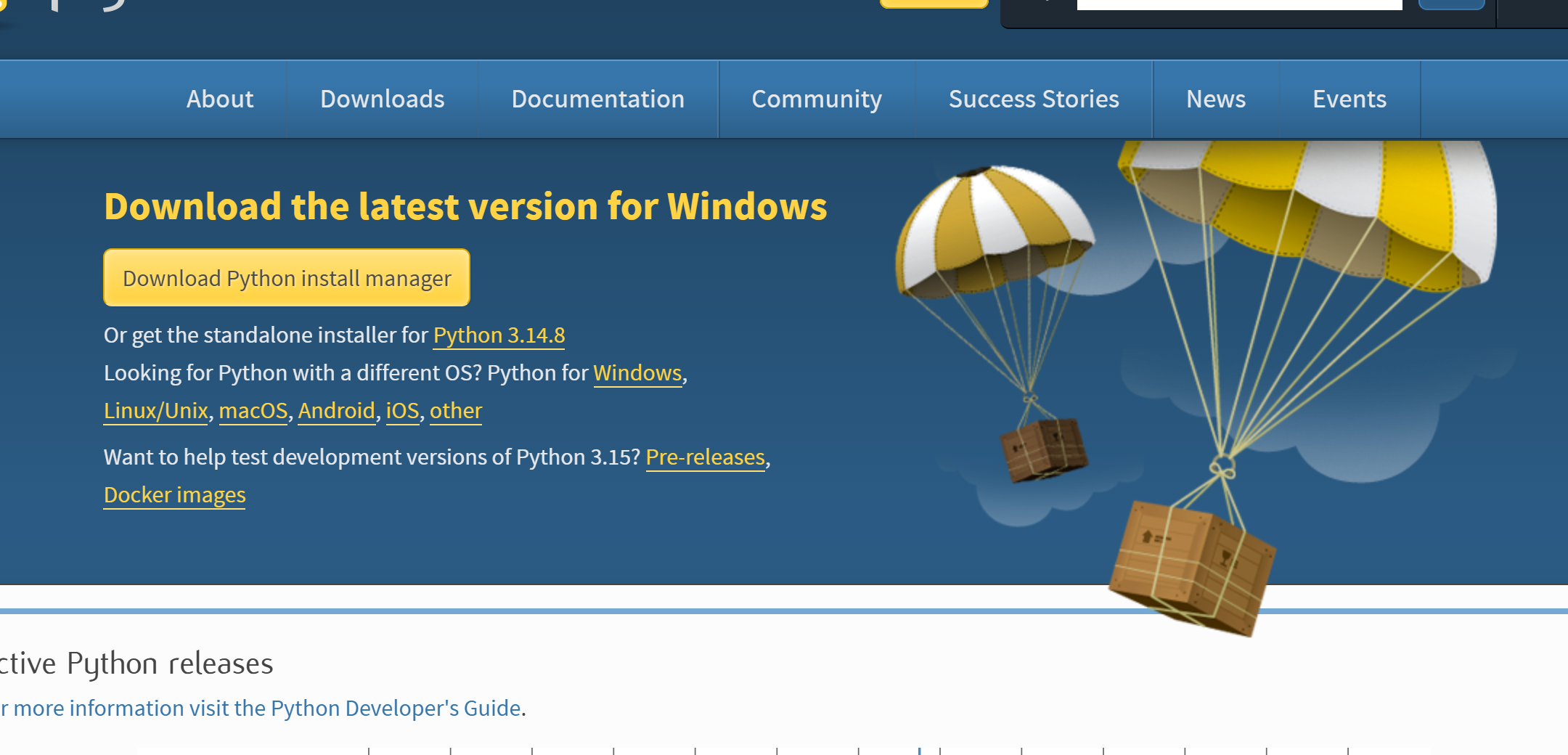
🔴 Click Here ➔ Python 3.14.8
02
Step 2: Check "Add python.exe to PATH" & Click Install
Open the downloaded setup file. Before clicking Install Now, make sure to check the box at the bottom:
Python 3.14.8 (64-bit) Setup Wizard
🚨 Must Check PATH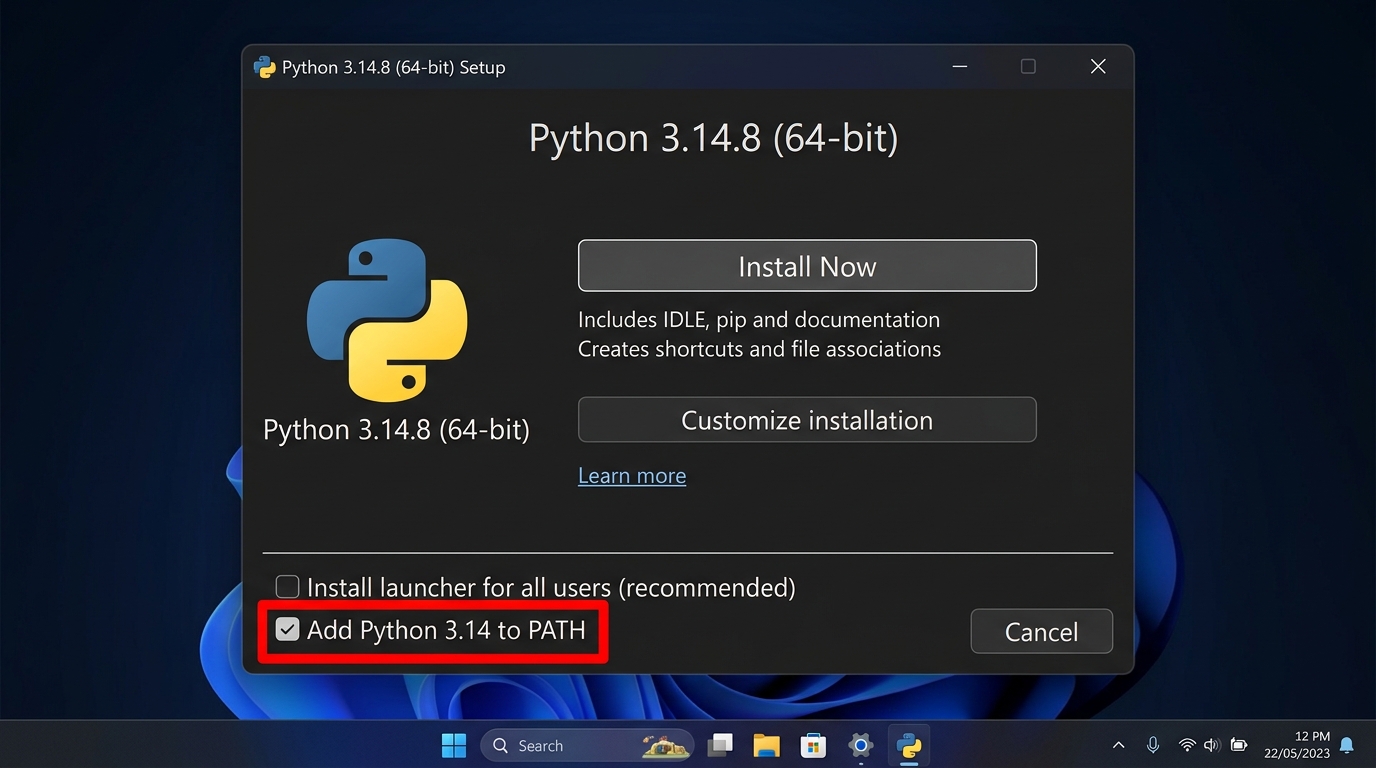
1
Check "Add Python 3.14 to PATH"Do this BEFORE clicking Install so terminal commands work.
2
Click "Install Now"Installs IDLE editor, pip, and standard pharmacy computing libraries.
03
Step 3: Setup Completed Successfully
When the installation progress completes, you will see the "Setup was successful" confirmation screen. Click "Close".
Setup was successful
Installation Finished ✓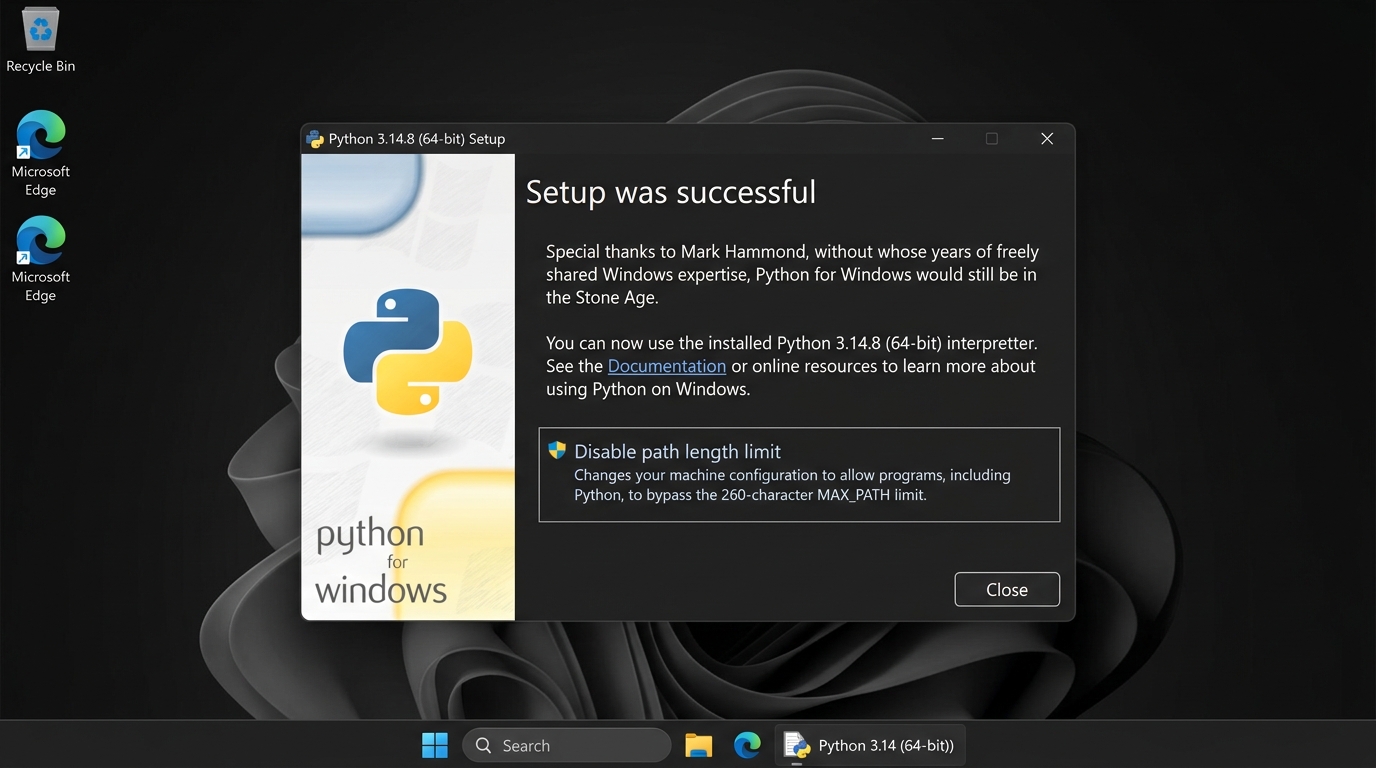
04
Step 4: Verify in Command Prompt
Press Win + R, type cmd, and press Enter. Run the following verification commands:
Command Prompt (CMD)Verification Passed
C:\Users\Student> python --version
Python 3.12.x ✓ (Python is active)
C:\Users\Student> pip --version
pip 24.x from ... ✓ (Package manager ready)
05
Step 5: Launch IDLE & Test First Program
Search for "IDLE" in Windows Start Menu and launch it. Try calculating pediatric drug dosage interactively:
Python 3.12 IDLE Interactive ShellPosology Test
>>> print("Hello Pharmacist!")
Hello Pharmacist!
>>> (6 / (6 + 12)) * 500
166.66666666666666